3. Limon™ BMS Software Licencing
Limon™ needs a licence. The first time you start it, Limon™ asks you to activate your licence online with the credentials we supply: Full Name, Organization, E-mail and Serial Number. A free VIEWER licence is available on the Download page. Please contact us for other licence types.
Before Activating Your Licence
License is not redistributable! Your licence belongs to your organization and must not be shared. Each licence can be active on a limited number of computers at the same time.
3.1 Activating Your Licence
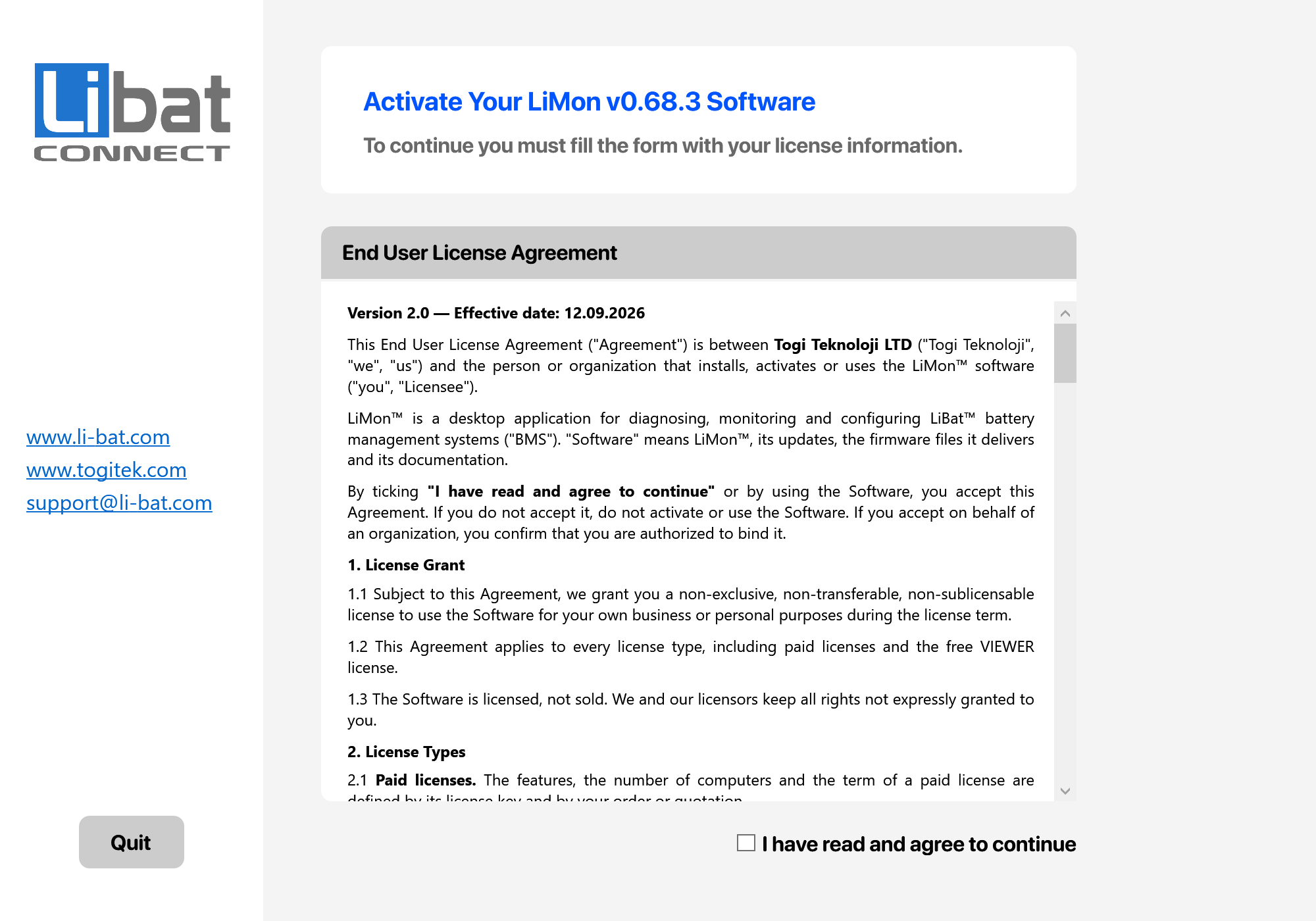
Fig.3.1: End User Licence Agreement
Info
Read the terms and tick I have read and agree to continue to open the licence form.
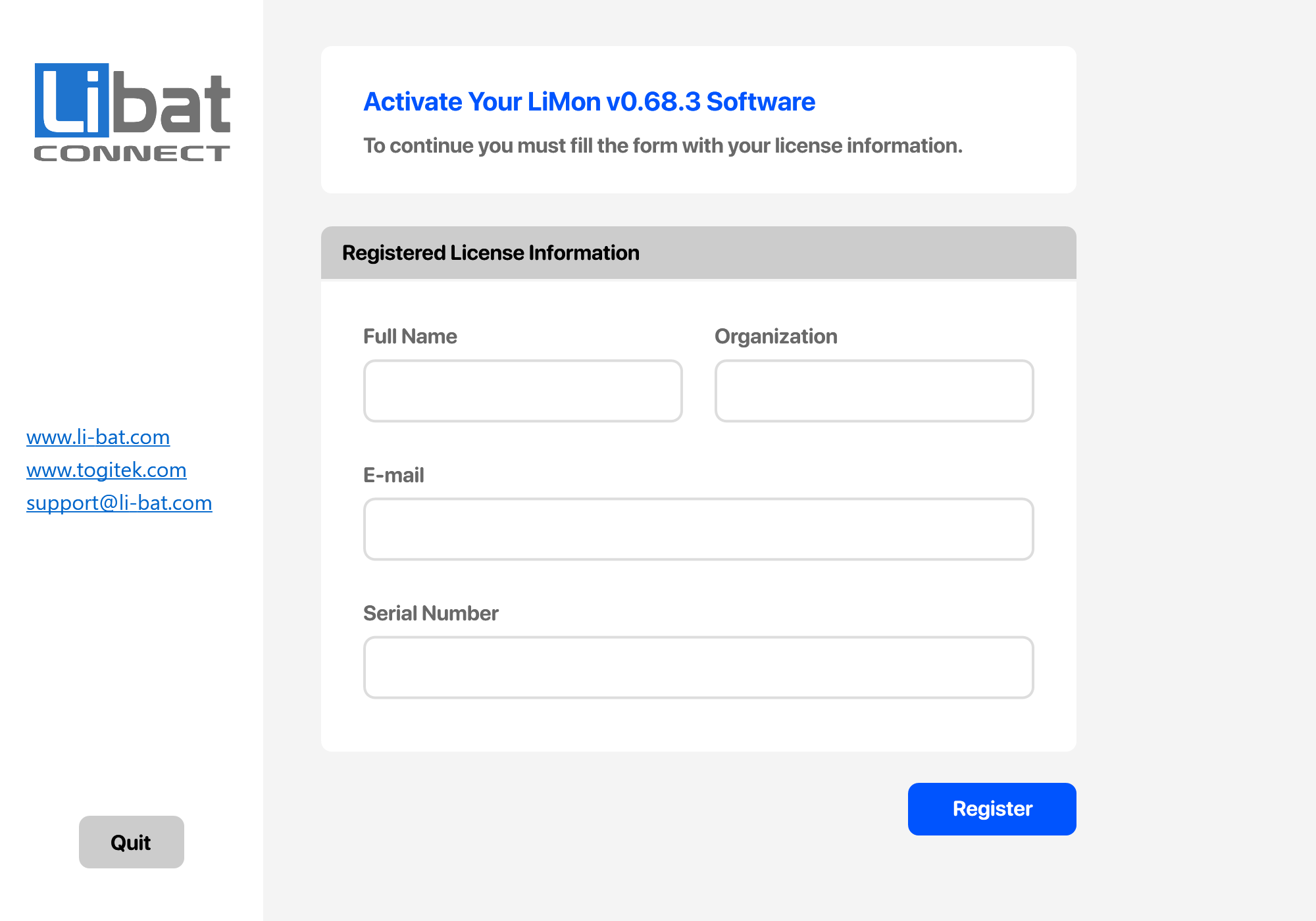
Fig.3.2: Entering the Licence Information
Info
Enter the licence information exactly as supplied. Full Name, Organization and E-mail must match your licence, including upper and lower case.
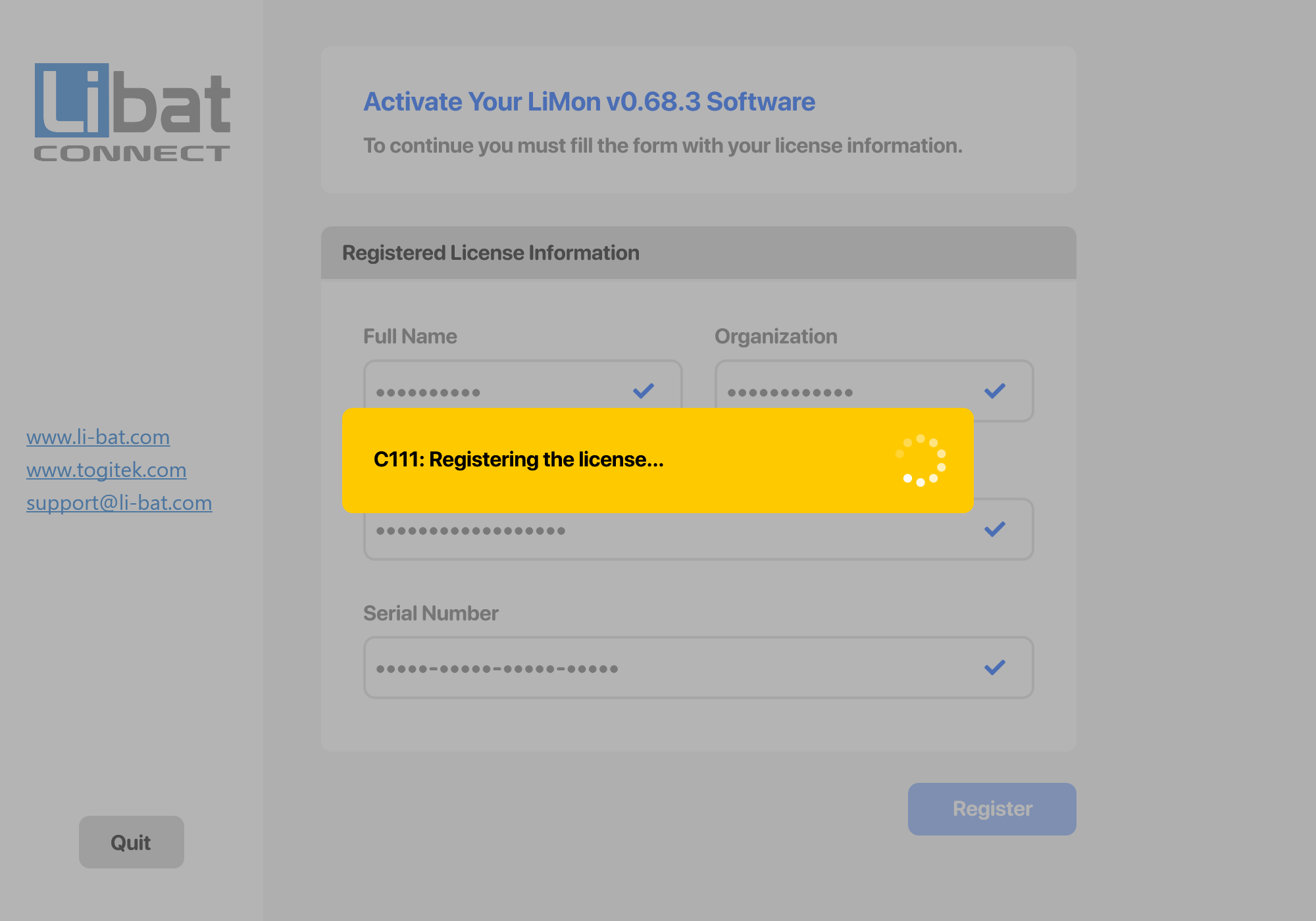
Fig.3.3: Activating the Licence
Info
Click Register and wait a few seconds. Activation needs an internet connection; a firewall or VPN can block it.
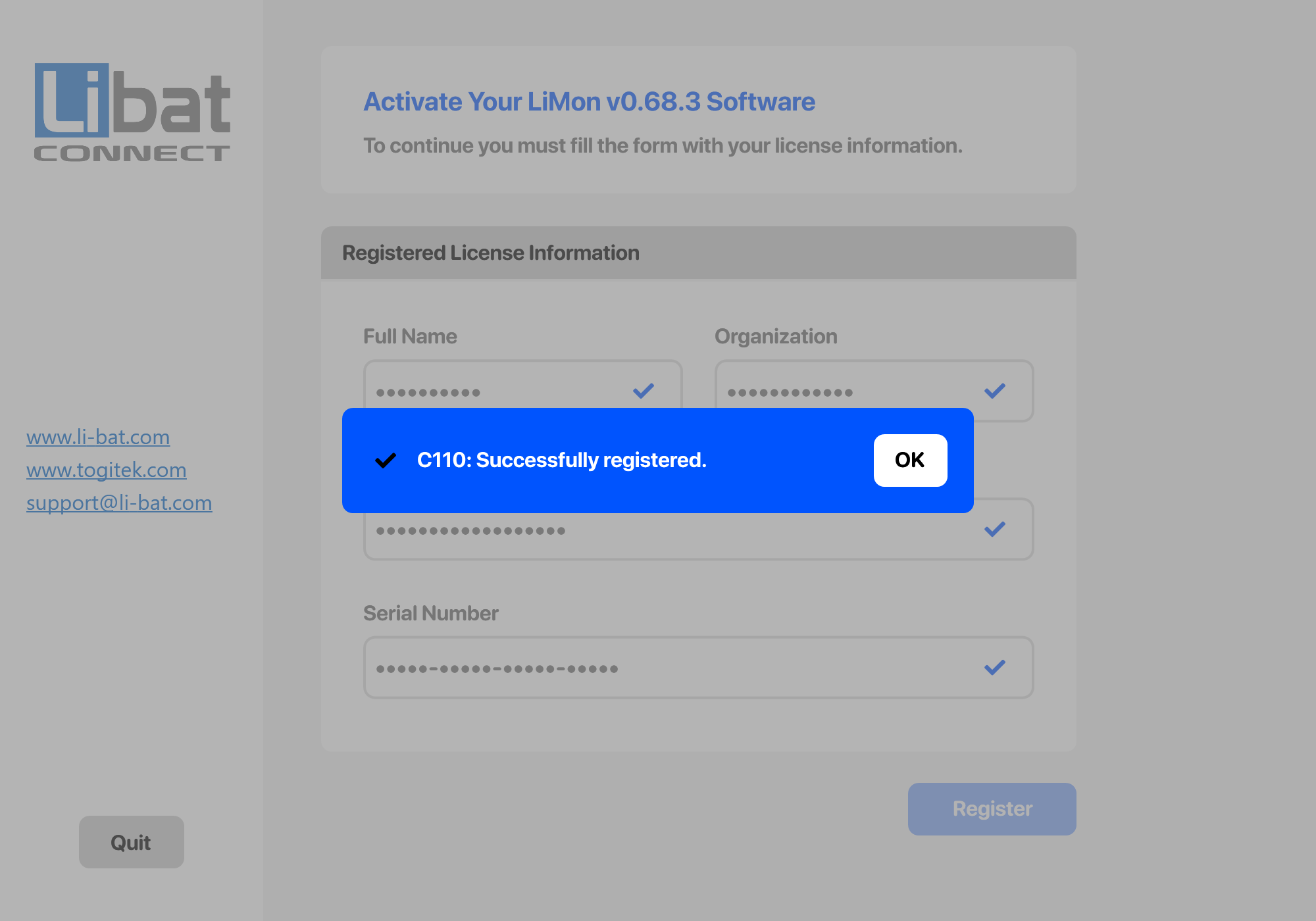
Fig.3.4: Successfully Registered
Info
After Successfully registered. the main screen opens by itself.
3.2 Using Your Licence
Table.3.1: Licence Behaviour
| Topic | Description |
|---|---|
| Updating or moving Limon™ | The licence is stored for your Windows user account, not next to the executable file. You can replace or move Limon.exe without entering the licence again. Another Windows user account needs its own activation. |
| Several computers | One licence can be active on several computers at the same time, up to the device limit of your licence. When the limit is reached, log out on another computer first. |
| Working offline | Limon™ works without internet using the stored licence, but it must connect to the internet at least once every 90 days. |
| Logging out | Logout on the About screen removes the licence from this computer and closes Limon™. It needs an internet connection. The computer's place in your device limit is released within 2 hours. |
| Expiry | The About screen shows the days left. Contact us to renew the licence before it expires. |
Tip
Copy License on the About screen copies your licence details to the clipboard. Send them to [email protected] when you need help.
3.3 Licence Messages
Table.3.2: Licence Messages
| Code | Message | What to do |
|---|---|---|
| C100, C101 | The license is expired | Contact us to renew the licence. |
| C102 | Name, Organization or e-mail is not valid | Enter the information exactly as supplied, including upper and lower case. |
| C103 | Maximum number of devices reached | Log out on another computer and wait up to 2 hours, or contact us. |
| C104 | Invalid Serial Number, or check your Internet / Firewall / VPN | Check the serial number, the internet connection, the firewall and the VPN. |
| C105 – C109 | A field is empty or the e-mail format is wrong | Fill in the field shown in the message. |
| C110 | Successfully registered | The licence is active. |
| C111 | Registering the license... | Wait until activation finishes. |
| C112 | Your license needs to be renewed, or the validation failed | Connect to the internet and start Limon™ again. |
| C113 | This device is no longer registered, or the registration failed | Enter the licence information again. |
Info
To get licence information please contact us by sending an e-mail to [email protected] or simply fill the quotation form.