4. DIS700 Operation
The DIS700 is used by touch: the buttons along the bottom of the screen open its pages. The status LED (2) shows the battery state at a glance, and the on/off button (4) switches the DIS700 on and off. A phone or a laptop reaches the same data without a cable: a browser over the Wi-Fi of the DIS700 (4.6), the LiBat Dashboard app over Bluetooth (4.7). This page follows the DIS700 user manual for firmware 1.3.5, which also describes the firmware update.
4.1 Power On and Off
With the supply on pin 6, the on/off button switches the DIS700 on and off; with a separate 12 V supply on pin 5 it runs as long as that supply is there (3.3). At power-on the DIS700 shows the LiBat™ start screen with its firmware version for about 3 s, then the Main page. Until BMS data arrives, the values show -, the battery symbol is grey and the page shows BMS Comm. : FAULT; once data arrives, the values fill in and a link symbol appears at the top right. If the data stops for a few seconds, the Main page returns to -, and the other pages keep their last values but show BMS Comm. : FAULT.
4.2 Pages
Fig.4.2.1: The Five Pages
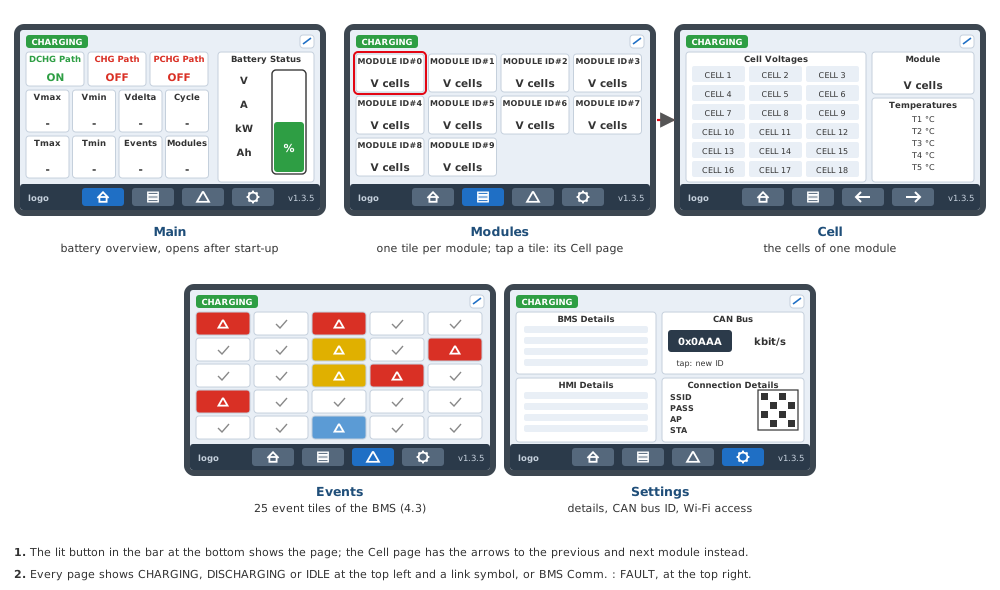
Table.4.2.1: Main Page
| Field | What it shows |
|---|---|
| Battery symbol | The state of charge in %; green above 60 %, through yellow and orange, red at 20 % and below |
| Voltage, Current, Power, Energy | Pack voltage (V), pack current (A, + while charging), pack power (kW), remaining charge (Ah) |
| Vmax Cell, Vmin Cell, Vdelta Cell | Highest and lowest cell voltage and their difference (mV) |
| Tmax Cell, Tmin Cell | Highest and lowest cell temperature (°C) |
| Cycle, Events, Modules | Charge cycles, active event tiles, battery modules |
| Path Status | DCHG, CHG and PCHG paths: ON in green, OFF in red, as the BMS reports them |
The Modules page shows one tile per module, up to 16, with its voltage and its connected and total cells; a tap on a tile opens the Cell page of that module: the voltages of cells 1 to 18 (Not Connected for an empty slot), the module voltage and temperature sensors 1 to 5 (--.-°C for a missing sensor), with arrows to the previous and the next module.
The Settings page shows the versions, serial numbers and model codes of the BMS and the DIS700, the CAN bus ID and bit rate, and the connection details: the hotspot name, its password, its address and the QR code for joining it (4.6).
4.3 Events and the Status LED
The Events page shows 25 tiles, one for each event of the BMS that the DIS700 tracks, from cell, temperature and current protections to the pre-charge and contactor faults. A white tile is inactive, a yellow tile a warning, a red tile an error, and the blue tile PreCHG Stage a normal state. The status LED follows the tiles.
Table.4.3.1: Event Tiles
| Tile | What the BMS reports | Colours it can show |
|---|---|---|
| User Support | The BMS needs attention from the user or service | Red |
| Internal ERROR | An internal BMS error | Red |
| Cell Connection | A cell connection fault | Red |
| Slave Comm. | Communication with a battery module was lost | Red |
| Pack O.T.P | Pack temperature too high | Yellow, red |
| DCHG U.T.P. | Temperature too low for discharging | Yellow, red |
| CHG U.T.P. | Temperature too low for charging | Yellow, red |
| CELL O.V.P. | A cell voltage is too high | Yellow, red |
| CELL U.V.P. | A cell voltage is too low | Yellow, red |
| Max. Cell V Delta | Cell voltages differ too much | Red |
| Max. Group Delta | Parallel cell groups differ too much in voltage | Red |
| Max. Temp Delta | Temperatures inside the pack differ too much | Red |
| DCHG O.C.P. | Discharge current too high | Yellow, red |
| DCHG 2nd O.C.P. | Discharge current too high, second level | Red |
| CHG O.C.P. | Charge current too high | Yellow, red |
| Short Circuit | Short-circuit protection was triggered | Red |
| Low SOC 1st | State of charge is low, first warning | Yellow |
| Low SOC 2nd | State of charge is low, second warning | Yellow |
| PCB O.T.P. | The BMS circuit board is too hot | Yellow, red |
| FET O.T.P. | The power switches (FETs) of the BMS are too hot | Yellow, red |
| Contactor FAULT | The main contactor does not work correctly | Red |
| PCHG FAULT | Pre-charge failed; the BMS switched the power paths off | Red |
| PreCHG Stage | The BMS pre-charges the load before it connects the main path | Blue |
| DCHG Force OFF | Reserved; stays inactive in firmware 1.3.5 | - |
| SYS Initialize | The BMS has just powered on and is starting up | Yellow |
The abbreviations: O.T.P. over-temperature protection, U.T.P. under-temperature protection, O.V.P. over-voltage protection, U.V.P. under-voltage protection, O.C.P. over-current protection, CHG charge, DCHG discharge, PCHG pre-charge. The DIS700 only shows what the BMS reports: an event that stays active is explained in the documentation of the BMS, for example the error bits of the BMS and the event pages of LiMon™.
Fig.4.3.1: Event Tiles and Status LED
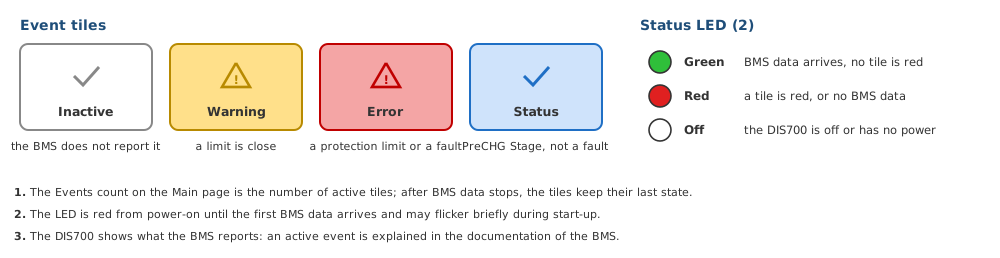
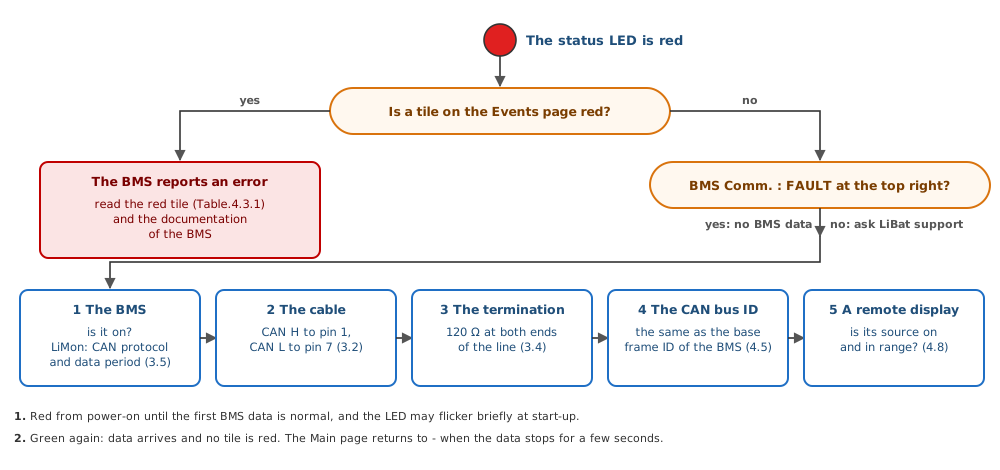
Fig.4.3.2: Status LED Red: What Now?
4.4 When the Screen Turns Dark
The backlight turns off only when the DIS700 is set to an inactivity timeout in its web interface (4.6): then it turns off after the set time without BMS data, at least 30 s, and on again as soon as BMS data returns; a touch does not wake it. The DIS700 keeps running meanwhile, and the status LED still works.
4.5 CAN Bus ID
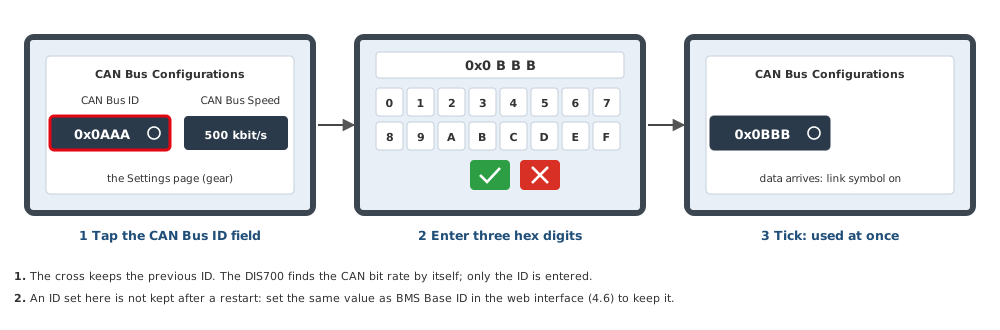
The CAN bus ID of the DIS700 must match the base frame ID of the BMS, 0x0AAA by default. On the Settings page, tap the CAN Bus ID field, enter the three hexadecimal digits and tap the tick. An ID set on the touchscreen is used at once but not kept after a restart; the ID that stays is set in the web interface (4.6).
Fig.4.5.1: Setting the CAN Bus ID
Tip
BMS Comm. : FAULT and a red status LED mean that no BMS data arrives: check that the BMS is on, the cable, the termination (3.4) and the CAN bus ID.
4.6 Web Interface over Wi-Fi
The DIS700 runs its own Wi-Fi network, its hotspot, while it is on, and a small web interface on it: no app and no internet are needed, any phone or laptop with a browser does. Four steps take you in:
Fig.4.6.1: Into the Web Interface in Four Steps
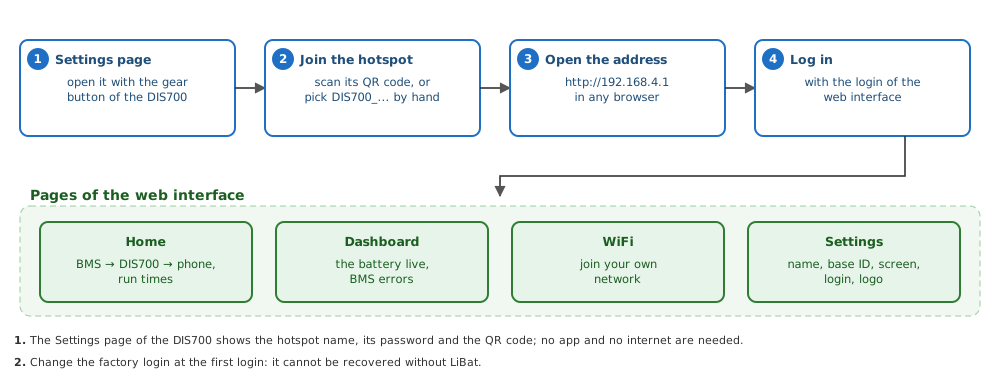
The Settings page of the DIS700 shows the name of its hotspot, its password and a QR code: scan the code with the phone camera and the phone joins by itself. Many phones then open the login page on their own; if not, type http://192.168.4.1 in the browser (http, not https). The factory login is in the DIS700 user manual; change it at the first login, because it cannot be recovered without LiBat™.
Table.4.6.1: Pages of the Web Interface
| Page | What you do there |
|---|---|
| Home | See the chain BMS → DIS700 → your phone at a glance: a green tick while BMS data arrives, the CAN message count, the run times of the BMS and the DIS700 and its addresses |
| Dashboard | Follow the battery live: the BMS model and run time, pack voltage, current, temperature, state of charge and the active BMS errors in plain text |
| WiFi | Let the DIS700 join your own Wi-Fi network as well, so you reach it from your normal network; optionally close its hotspot then |
| Settings | Give the DIS700 a short name (its alias, added to its hotspot and Bluetooth name), set the BMS base ID that stays after a restart (4.5), the screen timeout (4.4), Wi-Fi off after a time without a connection, the login, your own logo on the screen, a restart or a factory reset |
Tip
Keep the phone on the DIS700 hotspot while you use the web interface; a phone that has mobile data on may send the browser over the mobile network, because the hotspot has no internet. Switch mobile data off for a moment if the page does not open. If the hotspot is missing from the Wi-Fi list, Wi-Fi may have been set to turn off after a time without a connection: switch the DIS700 off and on with its on/off button.
4.7 LiBat Dashboard App over Bluetooth
The LiBat Dashboard app shows the battery on a phone over Bluetooth Low Energy, without joining any Wi-Fi. Open the app with Bluetooth on, tap the card of your DIS700 (it has the name of its hotspot) and the data comes in; there is no pairing and no PIN. The DIS700 takes up to three Bluetooth connections at the same time: each phone and each remote display that follows it (4.8) takes one.
Fig.4.7.1: The App and the DIS700
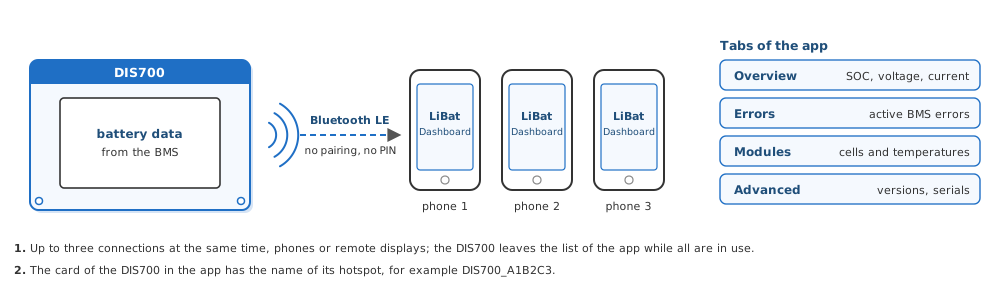
Table.4.7.1: The LiBat Dashboard App
| Platform | Get the app |
|---|---|
| iPhone | App Store |
| Android | Google Play |
The app does not change the usual settings of the DIS700: names, the BMS base ID and the screen timeout are set in the web interface (4.6); the one setting the app makes is the source of a remote display (4.8). If the app does not list the DIS700, check that Bluetooth is on and that the app may use it (Bluetooth or Nearby devices; on Android 11 and older also Location), that not all three connections are in use by phones or remote displays, and that the phone is within a few metres; otherwise close the app fully and open it again.
4.8 Remote Display
A DIS700 does not need a CAN cable to the BMS to show the battery; it needs only its supply. A display at the battery, a DIS110 or another DIS700 on the CAN of the BMS, passes the battery data on over Bluetooth Low Energy, and a DIS700 further away, within Bluetooth range, for example in the cab or at the operator's desk, takes it from there and shows it as if it came over CAN: the pages, the event tiles, the status LED and its web interface work as usual. A phone with the LiBat Dashboard app can follow at the same time, so a source display, a remote display and the app run together. In the same way a DIS700 at the battery can be the source for a remote DIS110.
Fig.4.8.1: Remote Display over Bluetooth
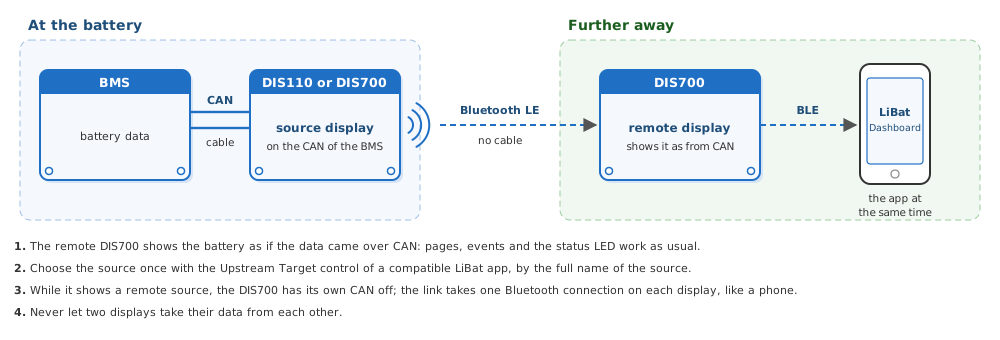
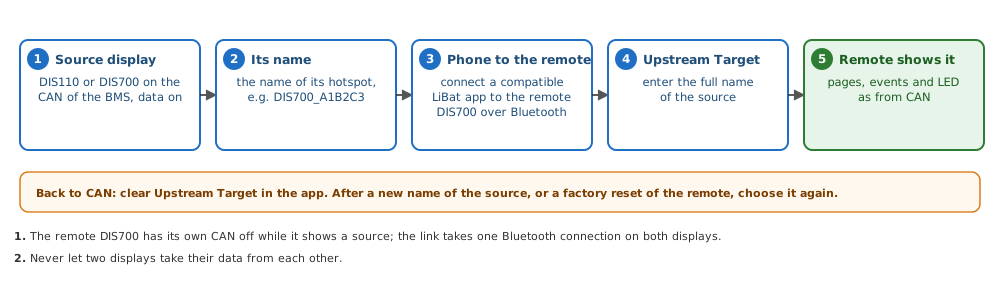
To set it up, connect a phone with a compatible LiBat™ app to the remote DIS700 and choose the source in the Upstream Target control of the app, by the full name that the source display advertises (the name of its hotspot, for example DIS700_A1B2C3). The remote DIS700 then switches its own CAN off. The link takes one Bluetooth connection on each display, as a phone does, so one phone fewer can connect to the source and to the remote. It keeps that source: if the source goes away, it does not return to CAN by itself; clear Upstream Target to use its own CAN again, and choose the source again after its name has changed. A factory reset clears the source as well. The source is set only in the app, not in the web interface or on the touchscreen; if your app has no Upstream Target control, ask LiBat™. A remote DIS700 that shows BMS Comm. : FAULT has lost its source: check that the source display is on and within range.
Warning
Never let two displays take their data from each other: one display at the battery is the source, the others follow it.
Fig.4.8.2: Setting Up a Remote Display
4.9 Troubleshooting
Table.4.9.1: Screen and BMS Data
| What you see | Why | What to do |
|---|---|---|
| Screen dark, status LED off | The DIS700 is switched off, or has no supply | Press the on/off button (4); check that the battery system is on and the supply on connector 3 (3.2) |
| Screen dark, status LED lit | The inactivity timeout turned the backlight off, because no BMS data arrives | Restore the BMS data (next row); the backlight comes on with it, a touch does not wake it |
| BMS Comm. : FAULT, status LED red | The BMS is off, a cable or termination fault, a wrong CAN bus ID, or a remote display that lost its source | Turn the BMS on; check the cable and the 120 Ω at both ends (3.4); compare the CAN Bus ID on the Settings page with the base frame ID of the BMS (4.5); on a remote display, check its source (4.8) |
| Status LED red, but no red tile | No BMS data | Look for BMS Comm. : FAULT at the top right (previous row) |
| A module is missing on the Modules page | The BMS does not report it | Check the connection of that module to the BMS |
| Not Connected on the Cell page | The BMS reports no voltage for that cell slot | Normal for a module with fewer than 18 cells |
| --.-°C on the Cell page | A temperature sensor is missing or out of range | Check that sensor |
| The CAN bus ID goes back after a restart | An ID set on the touchscreen is not kept | Set the BMS base ID in the web interface (4.6) |
Table.4.9.2: Wi-Fi and App
| What you see | Why | What to do |
|---|---|---|
| The DIS700 hotspot is not in the Wi-Fi list | Wi-Fi turned itself off after a time without a connection, the DIS700 joined your own network with its hotspot closed, or its name changed with a new alias | Switch the DIS700 off and on; or open its address on your own network (STA on the Settings page); look for the name the Settings page shows |
| The login page does not open | The address was typed with https, or the phone uses mobile data | Open http://192.168.4.1; switch mobile data off for a moment |
| The web interface login is lost | It cannot be recovered on the DIS700 | Ask LiBat™ |
| The app does not list the DIS700 | Bluetooth off or not allowed, all three connections in use by phones or remote displays, or too far away | Allow Bluetooth (Nearby devices; on Android 11 and older also Location), disconnect a phone, move within a few metres, or close and reopen the app |
Note
Write the serial number of the DIS700 (HMI Details on the Settings page) and its firmware version (bottom right of every page) in every request to LiBat™ support.